Niagara Select node
One of my first tasks at Epic was to write a Select node for Niagara’s module and function script assets. It now serves as the replacement for the If node and offers a vastly better user experience. Most of these improvements have also gone into the Static Switch node.
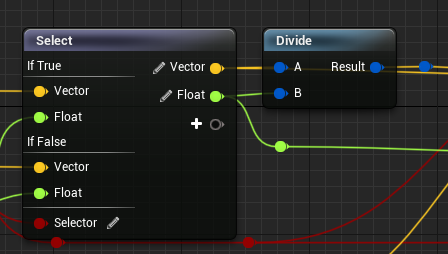
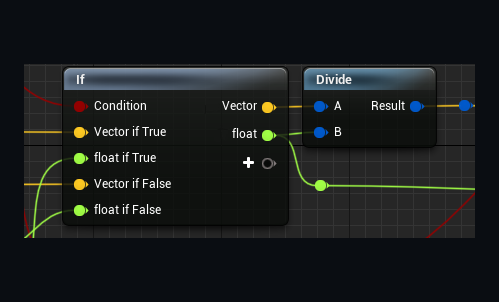
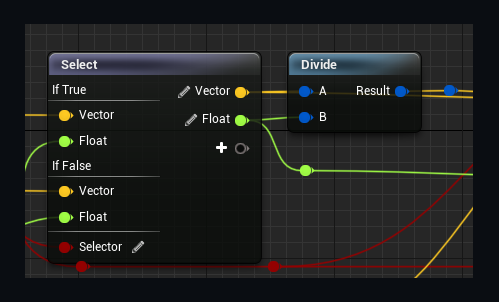
The Select node has multiple improvements over the If node. Functionally, it allows a larger number of cases rather than just two (True and False) by using enums or integers instead. Previously, to choose one of four floats, one had to chain 3 If nodes. Now one can use a single Select node with four cases.
User Interface
On first glance, there are three things that stand out visually.
- Updated UI for case labels. No longer having “if [Case]” labels included in the pin names. With a larger number of cases the visual noise coming from the pin names made it hard to differentiate and search for specific pins. Instead, we now have section dividers with case labels, easier to find what you are looking for, and a visual guide for orientation.
- Type Selector widget next to outputs and selector pin. This widget can be used to retroactively change pin types. Before, the only way to do this was to add a new output variable and delete the old one.
- More selector types than just bool. We can select based on integers and enums, too.
Selector Types
- The bool selector type replaces the previous If node directly. Two cases are constructed per output value; one for True and one for False.
- The enum selector type lets you choose an enum and will create one input pin per case per output value. With an enum of 4 entries and 3 output variables, there will be 4 sections with 3 input pins each.
- The integer selector type starts with two cases for 0 and 1 and offers buttons to add or remove cases.
And all of these types can be chosen after the fact due to the type selector.
Wildcard pin types
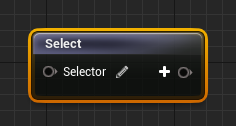
When creating a fresh Select node, it has neither a selector type nor any output pins. The selector pin type can be changed by using the type selector widget or by creating a connection with valid pins.
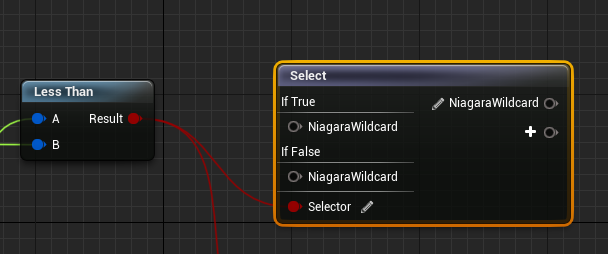
These new pins have the wildcard type, and they work similarly to wildcard pins in Blueprint.