The Tagged Asset Browser
The browser you see when creating a new Niagara System used to sort content into a fixed set of categories. The assets within were already extensible, you could add your own, but the categories on display were a hard-coded enum: Template Emitters, Parent Emitters (essentially the ones that were not templates) and, later, Learning Content, which I added afterwards. The Tagged Asset Browser replaces that fixed enum with fully dynamic, data-driven categories: the sections on the left, their icons and tooltips, and which assets show up in each are all defined through a configuration asset rather than baked into the engine. But filtering by tags is only the surface of it. At its core this is an extensible browser framework, and the same framework now drives several very different browsers across the editor.
A configurable, data-driven browser
Each category in the sidebar, Explosions, Impacts, Smoke, Sparks, Trails and so on, is a Section defined in a configuration asset. There is no hard-coded list anymore; sections can be added, removed and reordered freely, and teams can ship their own.
For each section you can set an icon (a texture or a style-set entry) shown next to the section name, a filter that decides which assets appear in it, and a tooltip along with behaviour options such as section merging.
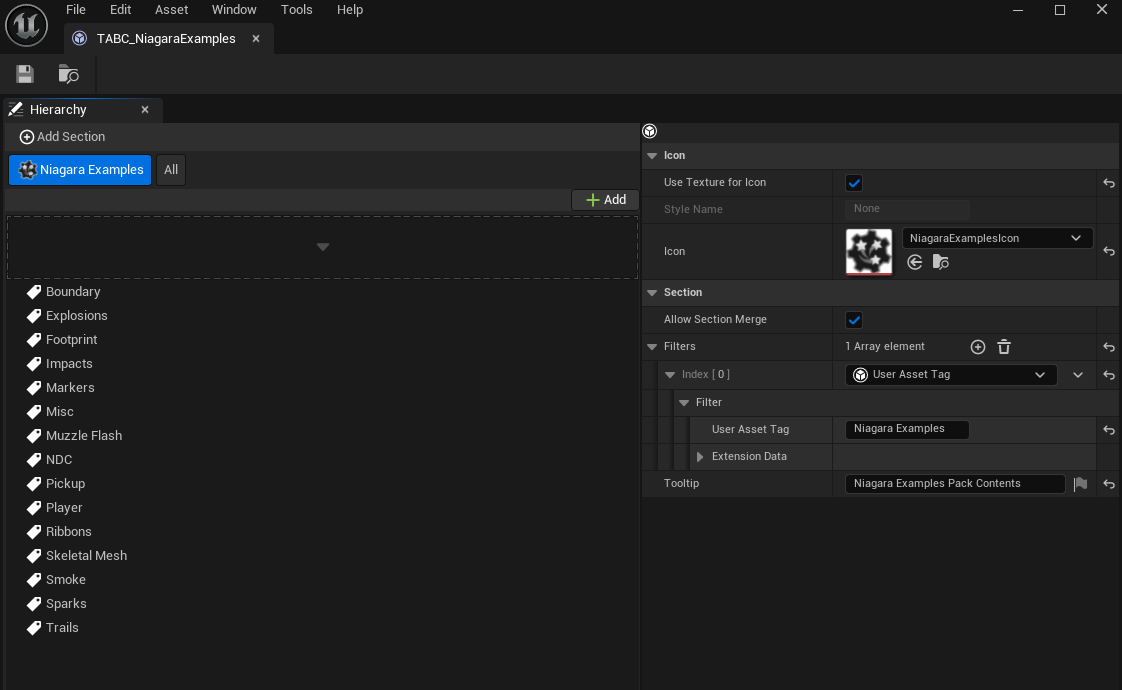
More than a tag filter
Tags are just one kind of filter, and the filter system itself is extensible. Beyond User Asset Tags there are filters such as a folder filter, which simply shows everything inside a given folder so you do not have to tag it at all, and you can write entirely new filter types of your own.
Filters also compose. Nesting several tag filters is treated as an AND, so only assets carrying all of those tags show up. When you want an OR instead, you use a Tag Collection: it surfaces every asset that has at least one of the tags it contains. Between AND, OR and custom filters you can describe almost any slice of content a team needs.
Built to be extended
This is where the real focus of the system lies. Each browser has a core, standalone configuration asset identified by an identifier. From anywhere, in any plugin or project, you can author another configuration asset, turn on its Extension option, point it at that identifier, and then add brand new sections or extend existing ones. In other words, what the browser shows can be decided dynamically and from the outside, without touching the original config.
A large studio, for example, can keep our example assets on display as templates and standard starting points, while adding their own sections filled with their own assets, all merged into a single browser. The standalone configuration asset itself is swappable too: ship your own with its own profile name and select it in the Project Settings to replace the default outright.
Works with plugins
Because extensions can live anywhere, the framework is naturally plugin-friendly. If a plugin you enable or buy, Niagara Fluids for instance, ships its own configuration asset, its content slots straight into the relevant browser. The result is a single user interface that pulls assets from many different sources at once, all filterable and organised together.
One framework, many browsers
The Niagara systems browser is just one instance. UAF uses the same framework to filter by class rather than by tags, with a whole set of class filters and distinct icons, so it reads like a more traditional asset browser while still being pretty and built on the shared system. There is also an optional Material Asset Wizard, on by default since 5.8, that uses it as well; you build a configuration asset and point to it in the Project Settings, the same setup that Niagara uses. One framework, configured differently, covering very different purposes.